
Chapter 3. Getting Started
A quick tour of the dashboard, a look at the image optimization defaults, and your first slider on a page in a few minutes.
A Tour of the Dashboard
Go to → . The JCH SwiftSlider dashboard opens with four panels:
- Setup
-
Links to the Sliders page, where you build your sliders, and to Component Options, where you set how images are optimized. The next to Sliders creates a new slider.
- Overview
-
How many sliders and slides you have, and which sliders are empty.
- Insights
-
How many of your images are optimized, how much space and bandwidth that saves, and how many have AVIF and WebP versions.
- Copyright
-
The version of JCH SwiftSlider you are running.
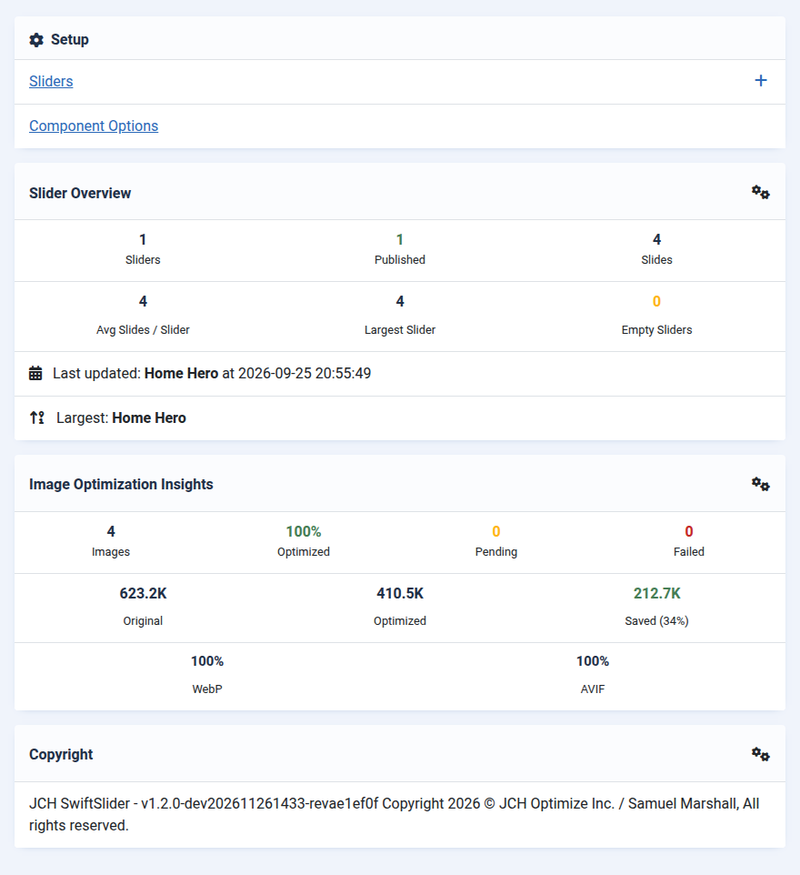
If your Download ID is missing, a warning at the top of the dashboard links to the page where you enter it. the section called “The Dashboard” describes every number on the dashboard.
On This Page