
The Sliders Page
Lists all your sliders. If you have none yet, it shows a button to create your first one.
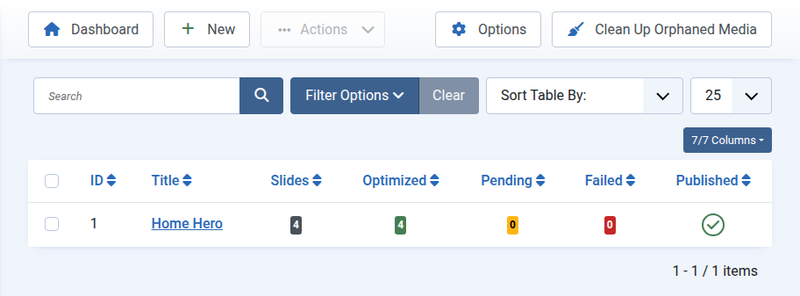
- Title
Click to open the slider editor.
- Slides
The number of slides in the slider.
- Optimized, Pending, Failed
How many of the slider's slide images have each status.
- Published
Click the icon to publish or unpublish the slider. An unpublished slider doesn't appear on your site.
- Search
Finds sliders by title.
- Select Status
Shows published, unpublished, archived or trashed sliders.
- Slider Status
-
Shows only Empty sliders, sliders that Has pending images or Has failed images, or sliders whose images are All images optimized.
Back to the JCH SwiftSlider dashboard.
Creates a slider.
Publishes, unpublishes, archives, checks in or trashes the selected sliders. Trashed sliders can be deleted permanently from the Trashed filter.
Opens the Options page.
Deletes image records and files that nothing uses any more. See the section called “Clean Up Images You No Longer Use”.
Warning
Deleting a slider permanently deletes its slides and their optimized images.
On This Page