
Step 3: Add the First Slide
-
Click . The slide editor opens in a panel on the right.
-
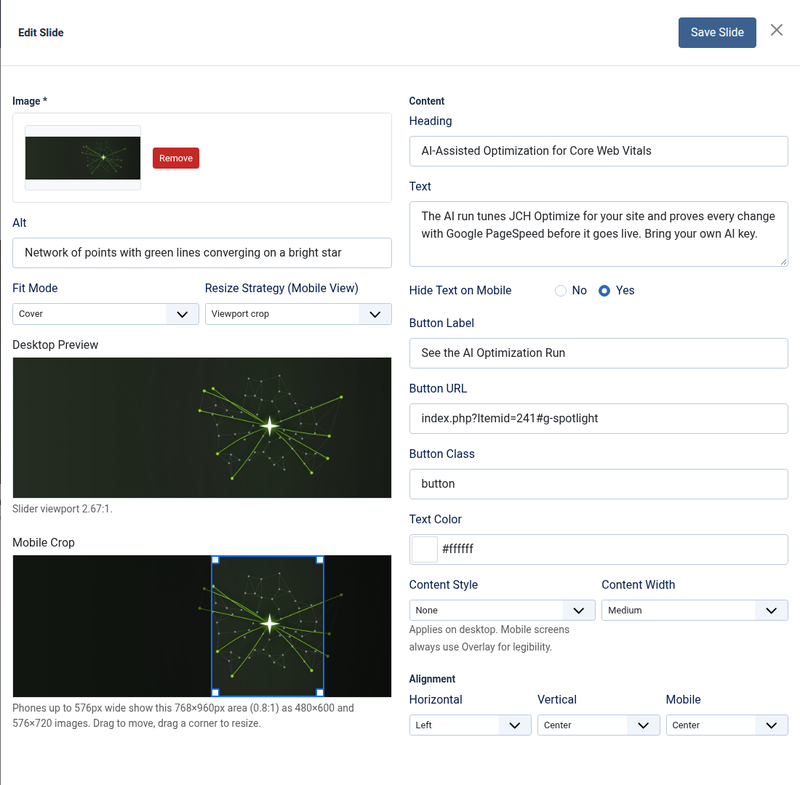
Under Image, click and choose your first image.
-
Type your alt text in Alt. If you leave it empty, SwiftSlider uses the slide's heading, or a description made from the file name, but your own words are always better.
-
Leave Fit Mode on Cover. The image fills the whole slider and is cropped at the edges if its shape differs.
The Desktop Preview below shows how the image will fill the slider on a desktop screen.
Figure 5.2. The slide editor
On This Page