
Chapter 5. The AI-Assisted Optimization Run Pro
Let an AI work through the optimization of your site: what a run does, what you need, how to start and follow one, what each outcome means, and how your data and API key are handled.
The run is in beta
The AI-assisted optimization run is a beta. We're still improving it from what runs on real sites show, so what a run does, and the AI models it uses, may change from one release to the next. This chapter describes the run as it works in your version of JCH Optimize.
What an Optimization Run Does
An optimization run does what an experienced person would do when optimizing your site by hand, following the same stages as Chapter 7, Tutorial: Optimize Your Site Step by Step:
-
It measures your page with PageSpeed Insights, on mobile and desktop, to know where it is starting from.
-
For each stage, an AI proposes a batch of settings that should make the page faster.
-
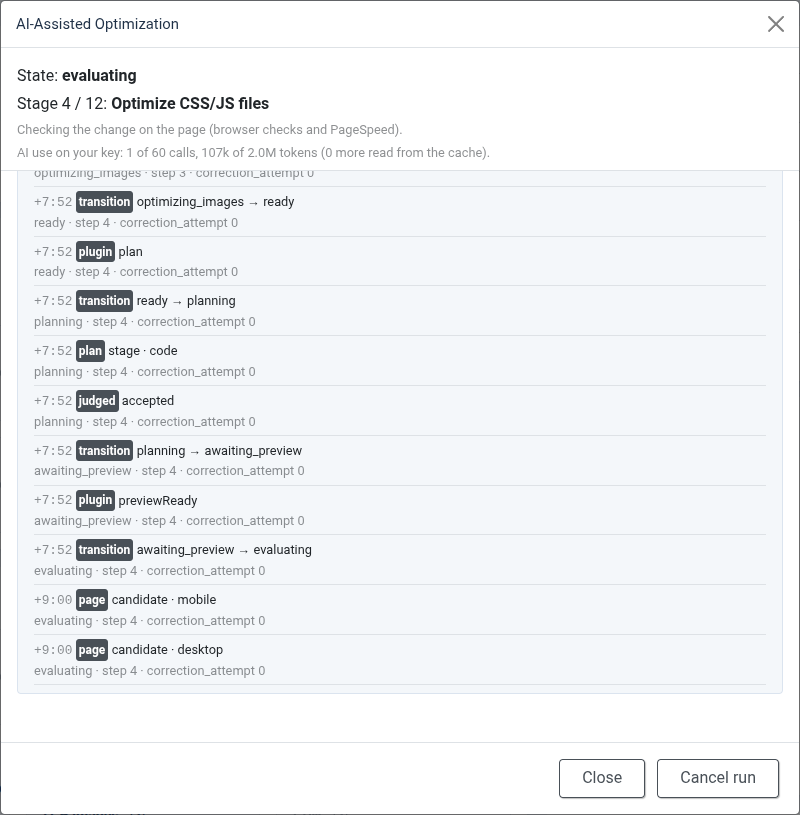
The proposal is tried out on a preview: a private version of your page that uses the proposed settings. Your visitors keep seeing your site exactly as it is.
-
An automated browser opens the preview and compares it with the original, looking for anything that broke: missing content, JavaScript errors, files that failed to load, something out of place. It also tries everything your page's code lets a visitor do (menus, sliders, tabs, accordions, drop-downs, form controls) and checks that each still does what it did on the original page. How fast the page is, and how much it moves while loading, isn't judged here: a change can make one of them worse on the way to making the page faster, and they are measured when the run works on speed.
Some pages change by themselves from one visit to the next: a featured article chosen at random, a news ticker, an advertisement that sometimes doesn't load. Before trying anything, the run loads your page a few more times with nothing changed, and whatever differs is left out of the checks, so it is never mistaken for something a setting broke. When the preview differs in a way it hasn't seen yet, the run loads your original page once more: if the original page differs in the same way, that's your page, not the setting. The run reports what changes by itself on your page; it is no reason for concern.
-
If something broke, the AI works out why by reading your page's scripts and stylesheets, the way a developer would: which script a slider needs, and whether it now runs too late or before something it depends on. It can try its idea on the preview before proposing it, and then proposes a correction, typically leaving a particular file out of an optimization or loading a script earlier. This is the part most people find hardest to do themselves.
-
Anything that was already broken on your page before the run changed anything is your site's own problem, not the run's: the run reports it to you, and if it stands in the way of the optimization, pauses until you fix it (see the section called “Problems Already on Your Site”).
-
When a stage passes, the run moves on to the next one, building on what already works.
-
Finally, the settings that made your page faster are saved to your site, and the run checks the live page once more. If it finds a difference from your original page there, your AI provider looks into it and judges whether it is a problem. If it is, the settings stay saved and JCH Optimize is put in Development mode, so your visitors get your pages without optimization until the settings have been reviewed. (A run for a page other than your home page puts that page's previous settings back instead.)
Note
The optimization run is the only optimization service we offer. We don't optimize or configure
sites by hand, and support tickets don't cover setting up JCH Optimize for your site (see
the section called “Getting Support”). If you want help configuring JCH Optimize, an AI Optimization
license and a run are the way to get it. Finishing a run is part of that service: when a home
page's run ends with its settings saved but not in use (outcome
kept_in_development), our support staff finish that optimization by hand, from
the settings the run saved, in the ticket opened for it.
Nothing changes for your visitors until the run has finished deciding what to apply.
On This Page