
Step 7: Page Caching
Until now, your site has built every page from scratch for every visitor, and JCH Optimize has optimized it each time. A page cache stores the finished, optimized page and sends that copy to the next visitors, which can cut the server's response time (TTFB) from a second or more to a few hundredths of a second. It comes last because while you are still changing settings, you want to see your changes immediately.
-
Make sure no other page caching extension or plugin is active.
-
Switch the page cache on:
- Joomla
-
Open the Mode Switcher in the status bar and click its page cache item. This enables the System - JCH Optimize Page Cache plugin. You can also enable the plugin in → → ; the page cache item in the dashboard's Notifications panel takes you there.
- WordPress
-
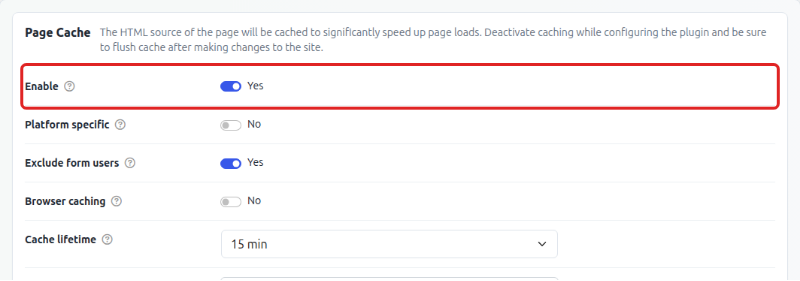
On the settings page, Page Cache tab, set Enable to Yes and save.
Figure 7.18. Switching on the page cache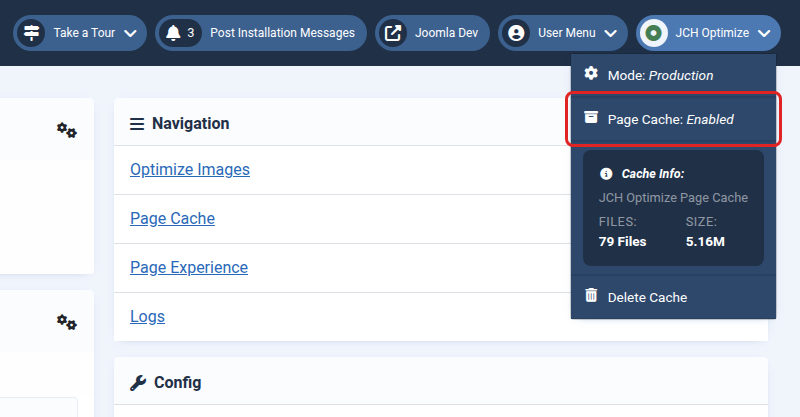
Joomla
WordPress
-
Open your site in a private window and visit a few pages twice. The second visit should feel almost instant.
-
Check anything that changes per visitor: a shopping cart, a login form, a "recently viewed" list, a contact form's confirmation message.
Logged-in users never get cached pages, and by default nor does a visitor who has just submitted a form (Exclude form users), so carts and confirmations keep working for them.
- A page shows out-of-date or someone else's content
-
Exclude it from caching: add part of its address to Exclude urls on the Page Cache tab. On Joomla you can also exclude menu items or whole components.
- Your site shows different HTML on phones and computers
-
Some templates send different pages to phones. Switch on Platform specific so phones and computers get separately cached copies. Most modern templates don't need this.
Going Further: Serving Pages Without PHP Pro
Even with a page cache, your site still starts up for each visit to find the cached copy. Serve Cached Pages as Static Files saves cached pages as plain files that your web server sends directly, without starting your site at all.
-
On the Page Cache tab, set Serve Cached Pages as Static Files to Yes and save. On Apache, JCH Optimize adds the rules to your
.htaccessfile automatically, and each saved page is sent with the security headers your site sends with it, such as those of Joomla's HTTP Headers plugin. On Nginx, add the JCH Optimize include to your server configuration, or ask your host to. Nginx sends the saved pages without those headers, so set them in the include as well: the comments in the file show how. -
Test your pages again as a visitor, and test anything that changes per visitor.
Caution
Because your site doesn't start for cached visits, anything that must run on every visit (a visitor counter, some cookie consent or geolocation extensions) won't. If something stops working, switch this setting off; the normal page cache still does most of the work.
On This Page