
Chapter 8. How-to Guides
Short, self-contained recipes for jobs you do once in a while: pausing JCH Optimize while you work, saving and restoring your settings, setting up a CDN or Cloudflare, scheduling recurring work, and more.
Pause JCH Optimize While You Work on Your Site
When you change your template or theme, edit CSS or JavaScript files, or install new extensions or plugins, JCH Optimize's optimized copies of your files get in the way: you won't see your changes until the cache is cleared. The Mode Switcher solves this with two modes:
- Development
-
JCH Optimize stops optimizing pages. Your settings are kept, and JCH Optimize's own pages stay available: on Joomla only the System - JCH Optimize plugin is disabled, and on WordPress the plugin stays active, with its settings, Optimize Images and its scheduled jobs working as before.
If integrated, which is the default, the page cache is switched off too, and your site behaves exactly as it would without JCH Optimize. The page cache also has its own item in the Mode Switcher, so you can switch it by itself in either mode. While it is on in Development mode, visitors get cached copies of your pages without optimization.
- Production
-
Optimization resumes and, if integrated, the page cache is switched on. The cache is cleared and the optimized files get new names, so visitors' browsers fetch your updated files instead of old copies they kept.
-
Open the Mode Switcher, which is available on every page of your administrator area:
- Joomla
-
Click JCH Optimize in the status bar at the top of the administrator area.
- WordPress
-
Hover over JCH Optimize in the admin bar at the top of the screen. On WordPress, the Mode Switcher menu is part of Pro. In both editions, the Optimization switch at the top of the dashboard does the same: off is Development mode, on is Production mode.
-
Click the mode item to switch between Production and Development.
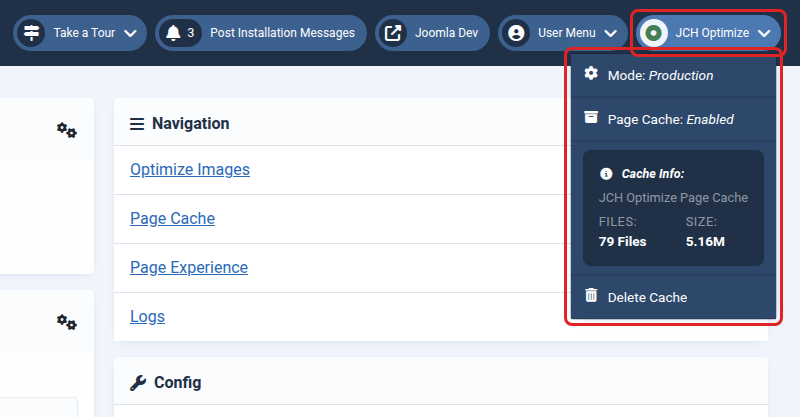
Joomla
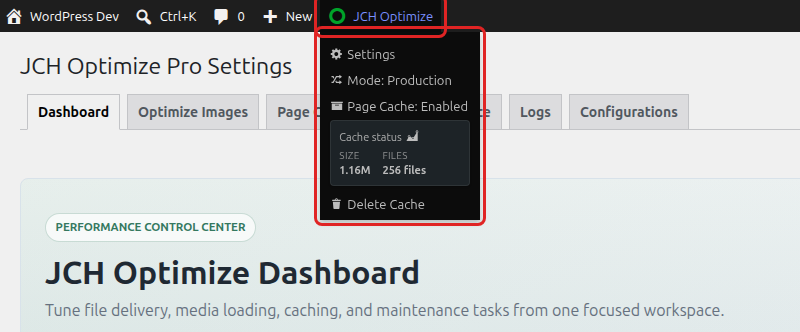
WordPress
The Mode Switcher menu also shows how much cache JCH Optimize is using, lets you switch the page cache on or off, and has a button. More details are in Chapter 12, Accompanying Extensions.
Tip
The color of the Mode Switcher tells you the state at a glance: green when JCH Optimize and the page cache are both on, grey when the page cache is off, orange when JCH Optimize is off but the page cache is on, and red when both are off.
On This Page