
Step 6: Advanced Features Pro
The advanced features give the biggest improvements, especially to the mobile score, but they change when parts of your page load, so they are the most likely to break something. Enable one at a time and test thoroughly, including everything that responds to clicks.
Caution
When troubleshooting a problem on a site where the advanced features are on, switch them off first. They are the most common cause.
Reduce Unused CSS
Reduce unused CSS goes further than Optimize CSS Delivery, which it needs: instead of loading your CSS files in the background, it waits until the visitor interacts with the page (scrolls, moves the mouse, taps) before loading them. Until then, only the critical CSS is used.
-
Click Reduce Unused CSS in the Advanced Features panel.
-
Reload a page without touching the mouse or keyboard. The visible part of the page should look complete. Then scroll: the rest should be styled correctly.
Problems look like those of Optimize CSS Delivery but are more visible, and are fixed the same way: correct the fold, and add missing selectors with the dynamic selectors helper.
Reduce Unused JavaScript
Reduce Unused JavaScript holds back your JavaScript files until the visitor interacts with the page. The browser has much less to do while the page loads, which improves TBT and INP a great deal.
The catch: some scripts are needed to display the top of the page, such as a slider that builds the first slide, or a menu built by a script. Others break when loaded late, because they wait for a moment that has already passed. And the first tap or click is what starts loading the held-back scripts, so a menu button whose script is held back does nothing on the first tap and only opens the menu on the second: visitors think the menu is broken. These are your critical JavaScript files, and they must be excluded from this feature.
-
Click Reduce Unused JavaScript in the Advanced Features panel.
-
Reload a page without touching it. Is the top of the page complete, including sliders and menus? Then, on a fresh load, tap or click the menu button once: does it open the menu on that first tap? Then interact with the rest of the page: does everything work?
-
If not, open the settings page, JavaScript tab, Reduce Unused JavaScript section, and click the button. (It is shown while Debug Plugin is on.)
Figure 7.17. The Critical JavaScript Configuration helper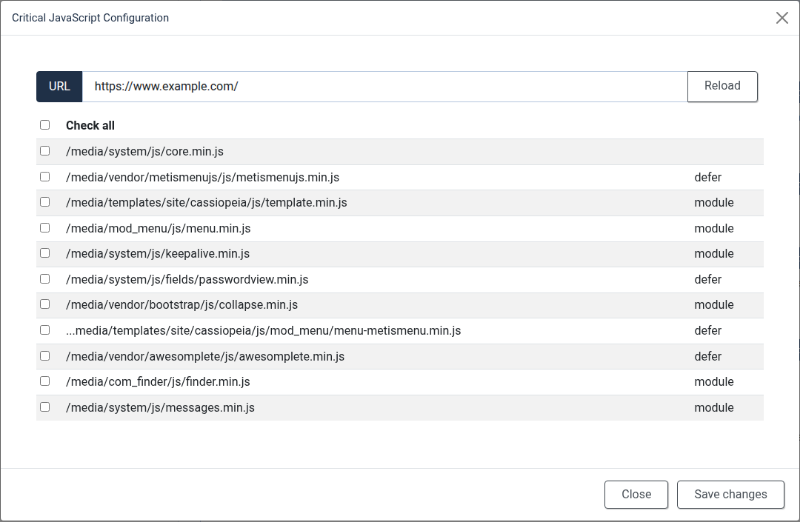
-
The Critical JavaScript Configuration window lists the scripts on the page in the URL box. Enter the address of the broken page and click if it is a different one.
-
Tick a script you suspect, for example the one belonging to your slider. The change applies straight away, while the window is open, so you can test it: reload the broken page in your private window and see whether it is fixed. Tick more scripts until it is.
-
Click to add the ticked scripts to the critical JavaScript settings, then save the settings page.
You can also edit the lists directly: Critical js files takes file addresses, Critical scripts takes a piece of a script written into the page, and Critical modules and Critical inline modules do the same for JavaScript modules.
Tip
Mark as few scripts as possible as critical: every one of them loads straight away again. Start with the scripts of whatever is visibly broken.
Reduce DOM
A page with a very large amount of HTML takes the browser longer to process.
Reduce DOM holds back whole sections
of the page below the fold (by default the header, nav,
main, article, section,
aside and footer elements) and adds them just before they scroll
into view.
-
Click Reduce DOM in the Advanced Features panel.
-
Check your pages, scrolling slowly all the way down. Every section should appear before you reach it, and carousels, galleries, maps and forms below the fold should still work.
If a section below the fold breaks (typically a carousel or slideshow, whose script looks for it
before it has been added), find its id or a class with
and add it to
Exclude id/class.
Your template may use plain div or ul elements for its sections.
Add their id or class to DIV or UL id/class
to include them. Heavy parts at the top of the page that aren't visible at first, such as large
drop-down menus, can be added to Above fold id/class.
On This Page