
Use a Content Delivery Network (CDN)
A content delivery network keeps copies of your images,
CSS and JavaScript on servers around the world, so each visitor downloads them from somewhere close by.
JCH Optimize works with any "pull" CDN: one that fetches files from your site the first time they are
requested and gives you a CDN address to load them from, such as cdn.example.com.
-
A CDN account with a pull zone (sometimes called a distribution or resource) whose origin is your site's address.
-
The CDN address for that zone. Many CDNs let you use your own subdomain, such as
cdn.example.com, set up with aCNAMErecord in your domain's DNS; follow your CDN's instructions.
-
Check the CDN address works: open
https://in your browser. You should see your site's home page (possibly without styling). If you get an error, fix the CDN setup before continuing.cdn.example.com/ -
On the settings page, open the CDN tab.
-
Set Enable to Yes.
-
In Domain 1, enter the CDN address without
https://, for examplecdn.example.com. -
Leave CDN scheme on https if your site uses HTTPS.
-
In Static Files 1, choose the kinds of files to load from the CDN. All of them is a good start.
-
Save, and check your pages. Right-click an image, choose , and check that its address now starts with your CDN address.
Figure 8.5. The CDN settings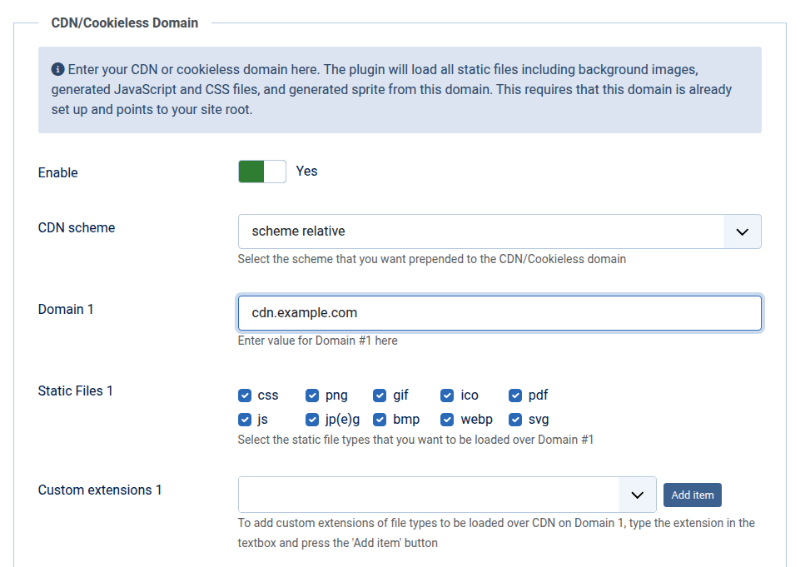
Joomla
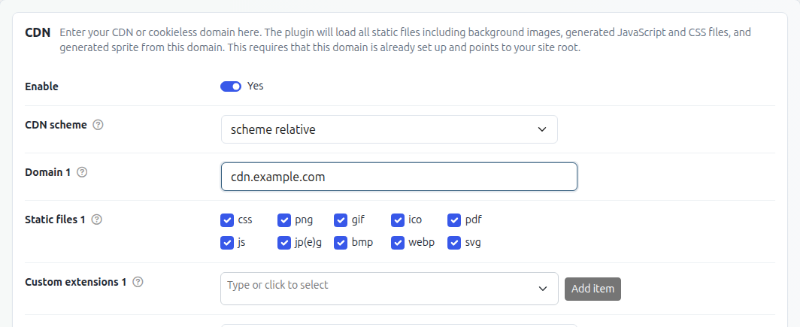
WordPress
Caution
If fonts or icons disappear after enabling the CDN, your CDN isn't sending the header that allows
fonts to be used by another domain (Access-Control-Allow-Origin). Enable it in your
CDN's settings (often called CORS), or untick fonts in Static
Files.
On This Page