
Step 5: CSS Features
This step gets the top of your page on screen as quickly as possible and stops it moving while the rest loads.
Optimize CSS Delivery
Optimize CSS Delivery finds the CSS needed to display the part of the page above the fold (the critical CSS), puts it directly in the page, and loads your CSS files in the background. The page can then be drawn without waiting for any CSS file, which removes the CSS part of PageSpeed's render-blocking resources warning and usually improves FCP and LCP noticeably.
-
Make sure you completed the section called “Step 1: Pre-configuration”. This feature relies on both the fold and the dynamic selectors.
-
Click Optimize CSS Delivery in the CSS Features panel.
Figure 7.12. The CSS Features panel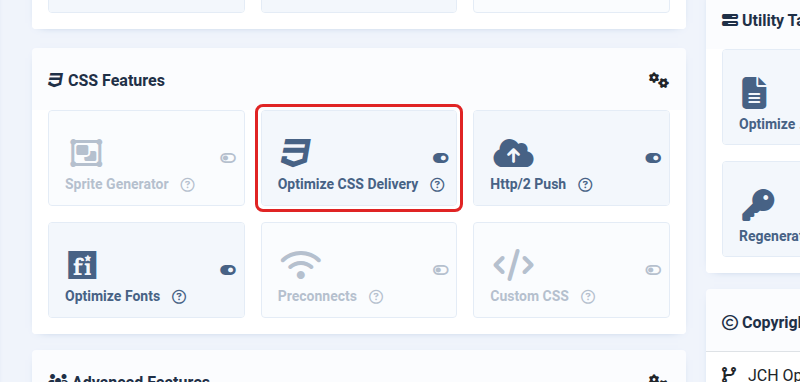
-
Check your pages, watching the very first moment of loading. Reload a few times. In the developer tools, the Network panel's throttling menu (set it to Slow 4G) slows loading down so it is easier to see.
The typical problem is a flash: part of the top of the page briefly appears unstyled, or jumps into place, as the rest of the CSS arrives. It means the critical CSS missed something:
-
If it happens on one kind of page, the fold is probably set too low for it. Measure that page again and add it to Per page.
-
If it affects an element that appears after loading, such as a cookie notice, run the dynamic selectors helper on that page again.
-
If you excluded CSS files in Step 3, they may load in a different order now. If the problem persists, this feature may not suit your site; switch it off.
HTTP/2 Preload
A preload tells the browser about a file at the very start of the page, before it would otherwise find it. JCH Optimize's features preload what they need on their own: LCP Images the image at the top of the page, and Optimize Fonts its fonts. Http/2 Preload adds two more things: JavaScript modules, and files you choose.
-
If PageSpeed reports Avoid chaining critical requests and lists JavaScript modules (files loaded with
type="module"), click Http/2 Push in the CSS Features panel. With Preload JavaScript modules on, the default, those files are preloaded. -
If a file the top of the page needs is loaded by a script, so the browser finds it late, add its full address to Include Files on the Preloads tab. Only add files that every page uses.
-
Check the browser console for warnings that a preloaded file "was not used within a few seconds". Add any such file to Exclude Files. This also works for the fonts Optimize Fonts preloads.
Preload as little as you can: every preloaded file competes for bandwidth with the ones the page needs first.
Optimize Fonts Pro
Web fonts slow a page down in two ways. The browser only finds them after reading the CSS, so they arrive late. And while they load, the text is shown in another font, then moves when the web font swaps in: a layout shift. Optimize Fonts deals with both:
-
With Optimize CSS Delivery on, it preloads the two font files most likely to show the text at the top of the page, so the browser downloads them right away. You don't need HTTP/2 Preload for this, but its Exclude Files still applies.
-
It serves Google Fonts from your own site. Pages no longer wait for connections to Google's servers, and your visitors' IP addresses aren't sent to Google.
-
Until a web font loads, it shows the text in a fallback font already on the visitor's device (Arial or Times New Roman on most devices, Roboto or Noto Serif on Android), resized to take up the same space as the web font, so the page doesn't jump when the web font arrives. A device with none of those fonts uses its own sans-serif or serif font.
-
Click Optimize Fonts in the CSS Features panel.
-
Open a page and check that the text looks as before.
-
If your site uses Google Fonts, check they now come from your site: open the browser's developer tools, select the Network tab and reload the page. There should be no requests to
fonts.googleapis.comorfonts.gstatic.com. Select Font to show only the font files: they now come from your own site.Figure 7.13. Font files served from your site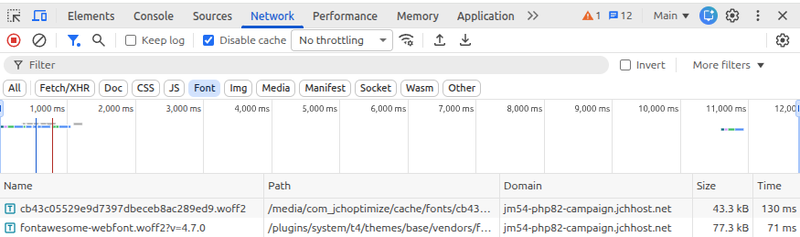
-
Test the page in PageSpeed Insights and compare LCP and CLS with your baseline.
Google Fonts are only served from your site while CSS files are combined (Optimize CSS Files, on by default). JCH Optimize downloads each Google Fonts stylesheet and its font files once, the first time a page uses it, and again after you clean the cache. If the download fails, the fonts load from Google as before, without blocking the page, and JCH Optimize tries again an hour later.
Each web font is measured to size its fallback font, using its regular style (not bold or italic), because that's what most text on the page uses. Fonts in WOFF2 files can only be measured when PHP on your server has the brotli extension; otherwise a WOFF or TrueType file with the same name in the same folder is used, if there is one. If the regular style can't be measured, JCH Optimize uses the measurements it comes with for every Google Fonts family, which covers most fonts that themes and templates include. Failing that, it measures another style of the font. A font it can't measure any of these ways simply has no fallback font.
To undo, switch Optimize Fonts off.
Choose how text shows while fonts load
Font display has two choices:
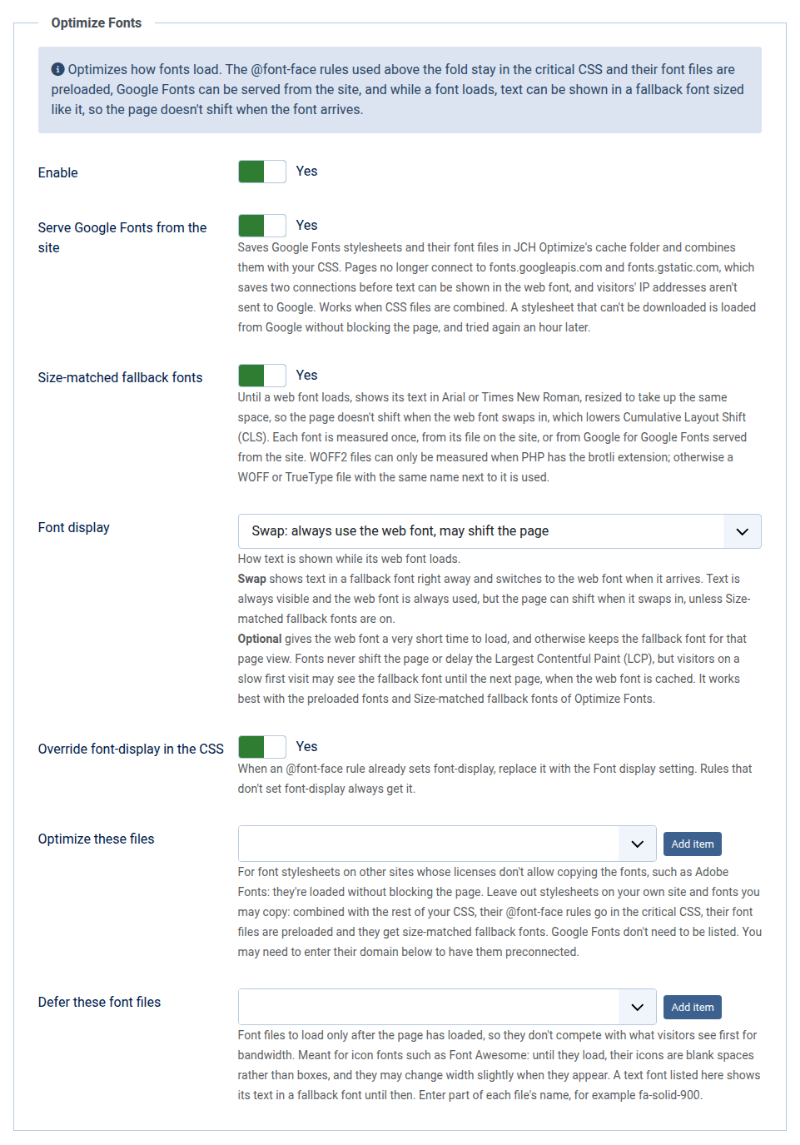
Joomla
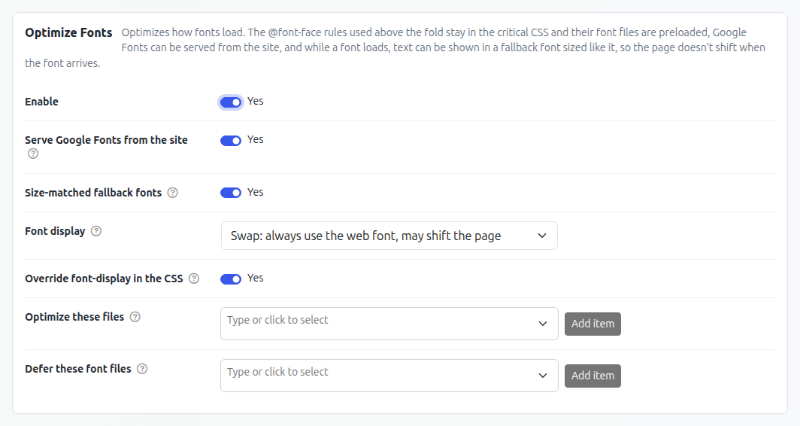
WordPress
- Swap (the default)
-
Text shows right away in the fallback font and switches to the web font when it arrives. Your web font is always used. With size-matched fallback fonts on, the switch barely moves anything.
- Optional
-
The web font gets a very short time to load. If it isn't there by then, that page view keeps the fallback font, and the next page uses the web font, which is now in the browser's cache. Fonts never move the page or delay LCP, but a visitor on a slow first visit may see the fallback font on their first page.
Try Optional if PageSpeed still blames fonts for layout shifts, or if the largest element at the top of your page is text, and you don't mind the occasional first page in Arial or Times New Roman.
Fonts you can't copy, such as Adobe Fonts
Some font services, Adobe Fonts among them, don't allow their fonts to be copied to your site. Add the address of their stylesheet to Optimize these files so it loads without blocking the page. You may also want to add the service to Preconnects.
Don't add font stylesheets from your own site, or Google Fonts. Combined with the rest of your CSS, their fonts are preloaded and get fallback fonts, which a listed stylesheet doesn't.
Icon fonts, such as Font Awesome
An icon font can hold back your page's Largest Contentful Paint even when none of its icons are
the largest element: PageSpeed counts every font file that finishes before that paint. To load
it after the page instead, add part of its file's name, such as fa-solid-900,
to Defer these font files.
Until it loads, its icons are blank spaces.
Check the page after you save. If icons change width when they appear, and the page shifts, give them a fixed width with custom CSS, or take the file out of the list. A text font can be listed too when your fonts weigh on the Largest Contentful Paint: its text shows in a size-matched fallback font until the page has painted, then changes to the web font, so check that the page doesn't shift when it does.
Preconnects Pro
Connecting to another website (a font service, a CDN, an analytics provider) takes time before anything can be downloaded from it. A preconnect starts that connection early. Preconnect Third-Party Origins adds preconnects for the other websites used by your critical CSS automatically.
-
Click Preconnects in the CSS Features panel.
-
If PageSpeed's Preconnect to required origins suggestion lists an address, add it to Preconnect domains, including
https://.
Tip
Preconnect to two or three websites at most, the ones needed to show the top of the page. Add the others to DNS-Prefetch domains, a lighter hint that doesn't compete for the connection.
Custom CSS: Stop the Page Jumping
If PageSpeed still reports layout shifts (Avoid large layout shifts), some element on your page doesn't have its space reserved until it has loaded. Sliders, adverts, embedded videos and web fonts are common culprits. You fix this by giving the element, or its container, a minimum height in Custom CSS.
-
In PageSpeed Insights, open the Layout shift culprits insight. It lists the elements that moved.
Figure 7.15. Layout shift culprits in PageSpeed Insights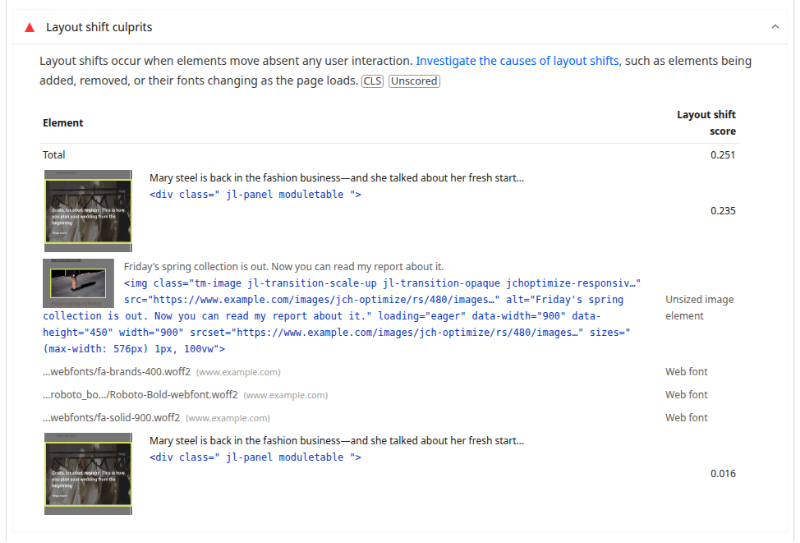
-
The element that moved is usually not the one that caused it. The cause is normally just above it on the page: the element that grew when it loaded. Find it on your page, right-click it and choose . Note its
id(written#namein CSS) or a distinctiveclass(written.name). -
Check its height once the page has fully loaded: hover over it in the Elements panel and the size is shown on the page.
-
On the settings page, CSS tab, Custom CSS section, set Enable to Yes and add a rule giving it that height:
#slideshow-container {
    min-height: 420px;
}
If the height differs on phones and desktops, put the phone rule in Mobile and the desktop rule in Desktop. JCH Optimize wraps them in the right media queries for you.
Figure 7.16. The Custom CSS settings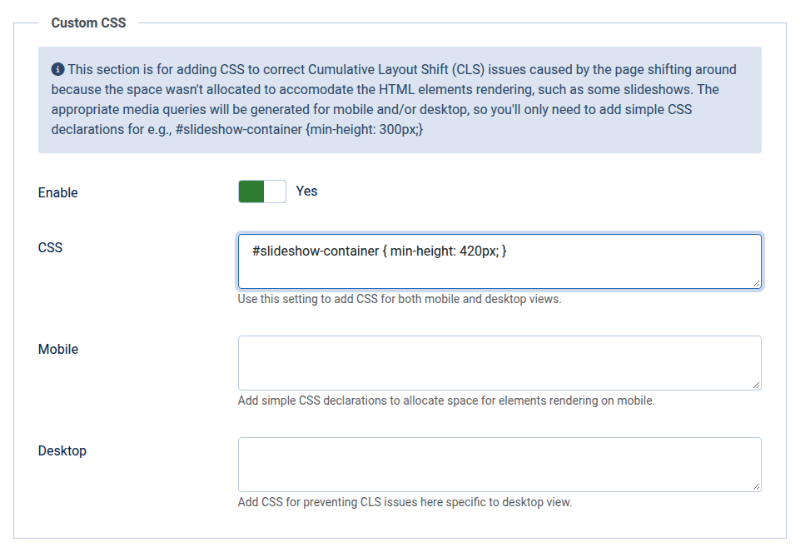
Joomla
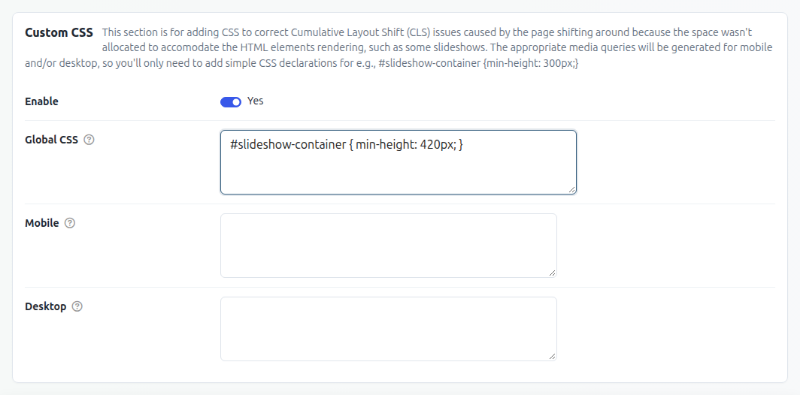
WordPress
-
Save, and test again.
Sprite Generator
The Sprite Generator combines small background images, such as icons, into one image called a sprite, to reduce the number of downloads. On modern servers, many small downloads are no longer the problem they were, so most sites gain little from it, and it is not part of the AI-assisted optimization run. If you try it and an icon appears wrong, add that image to Exclude images from sprite. It needs Optimize CSS Files on.
On This Page