
The Optimize Images Page Pro
Sends your images to the Optimize Images service to be compressed and, depending on your settings, converted to WebP and AVIF and resized for phones and tablets. How images are processed is set on the Optimize Images tab of the settings page; see the section called “Optimize Images Tab”.
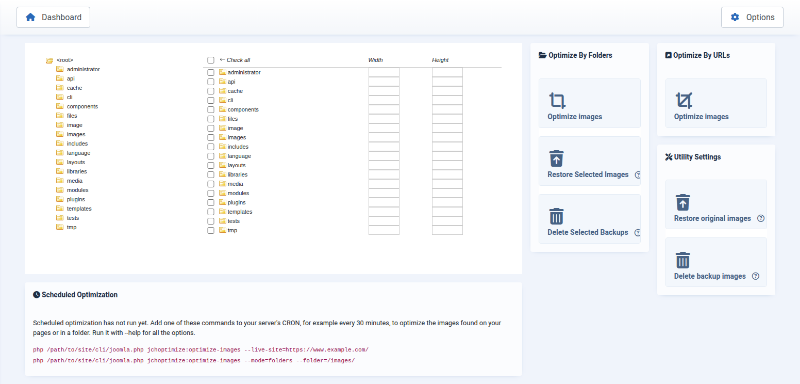
Joomla
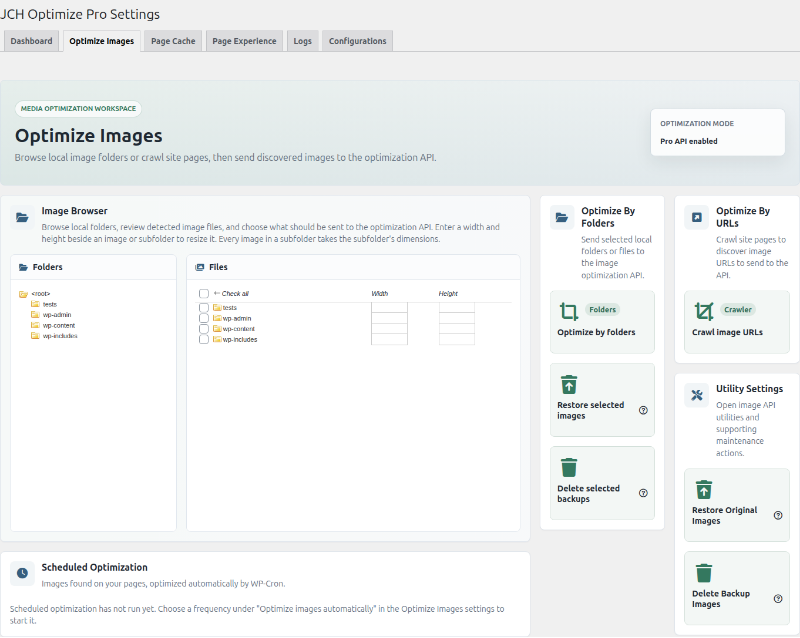
WordPress
Optimize By Folders
Browse your site's folders in the file tree on the left. Click a folder to list its images on the right, tick the folders or individual images to optimize, and click . With Recurse in subfolders on, subfolders of ticked folders are included.
Optimize By URLs
Click to crawl your site's pages, starting from the home page, and optimize the images found on them, including background images in your CSS. With Auto resize images on, images are also resized to the size they are shown on screen; this needs your site to be reachable from the internet.
Progress and Results
While images are being optimized, a window shows the progress and a log of each image. Keep the page open until it finishes. Images already optimized with the current image settings are skipped when Ignore optimized images is on (the default); the others are optimized again from their originals.
Restoring and Deleting Backups
Puts back the original versions of optimized images, as long as their backups still exist, and removes the WebP and AVIF versions made from them. The images are then treated as never optimized.
-
Permanently deletes the backups to free disk space. The backups are your images' originals, which images are optimized again from when you change the image settings.
Warning
There is no undo. After deleting the backups, images are optimized again from their optimized files, which loses a little more quality each time. Only delete them when you need the disk space.
Scheduled Optimization
Shows the state of scheduled image optimization: whether it is in progress, paused until your plan's image credits refill, stopped with an error, or finished; how many images the last run optimized; and when it last ran. Before the first run, it shows how to start it.
On This Page