
Starting a Run Pro
-
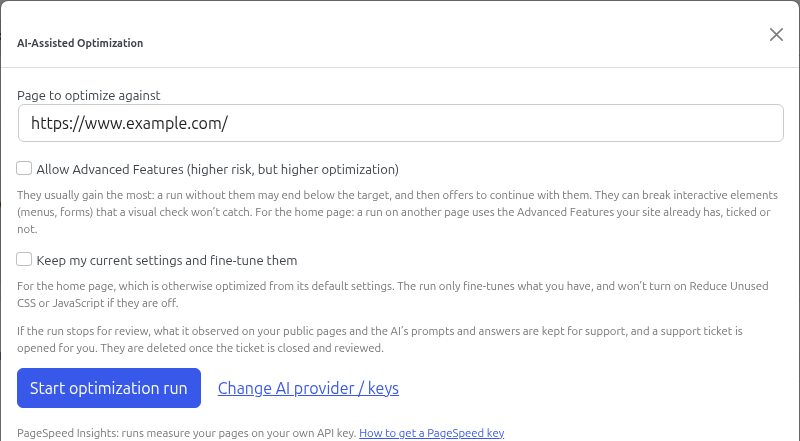
On the dashboard's AI-Assisted Optimization panel, click . The AI-Assisted Optimization window opens with the start form.
-
In Page to optimize against, enter the address of the page to optimize. For your first run, use your home page; see the section called “The Home Page First, Then Other Pages”.
-
Decide whether to tick Allow Advanced Features (higher risk, but higher optimization).
The Advanced Features give the biggest gains, but they can break things that only show up when someone uses the page, such as a menu that no longer opens or a form that no longer submits. Without them you take less risk and give up those gains: the run may end below the target, and it then offers to continue with them instead of opening a support ticket (see the section called “Continuing a Run with the Advanced Features”). With the box ticked, the run turns on Reduce Unused CSS, Reduce Unused JavaScript and Reduce DOM in stages of their own, and checks the menus, buttons and tabs at the top of the page on the first tap, but it can't try everything a visitor might do. Leave the box unticked for your first run; tick it when you are ready to test your menus, forms and other interactive parts yourself after the run.
The box matters for your home page's run. A run on another page uses the Advanced Features your home page's run turned on, ticked or not, and never turns one on itself.
-
Decide whether to tick Keep my current settings and fine-tune them.
This matters for your home page only, which is otherwise optimized from scratch; see the section called “The Home Page First, Then Other Pages”. Tick it to improve on settings you already have, for example after an earlier run: the run skips straight to fine tuning, from your settings. It leaves Reduce Unused CSS and Reduce Unused JavaScript as they are; one that is off stays off.
-
Click in the window.
-
Leave the dashboard open until the run finishes.
You can close the window with at the bottom, or the X at the top: the run carries on, and the panel on the dashboard shows which stage it is on. Click to open the window again.
Important
The run is driven from this browser tab: each time a step finishes, the tab asks for the next one. If you close or reload the tab, the run pauses. Open the dashboard and start a run again to continue it; the window tells you
This site already had a run in
                        progress - resuming it.
If the window says the server took too long to answer, click : the run may have gone on without the window, and Continue picks it up where it is.
How long a run takes depends on your site and on how many corrections are needed. Before you start, the What to expect box at the top of the start form shows what successful runs on JCH Optimize sites over the last 30 days were like: how long they took, how many requests they made to the AI provider (with the tokens it read and wrote, and an estimate of what that cost at the provider's list prices) and to PageSpeed Insights, and how much the PageSpeed score changed where settings were applied. The figures are typical values, with the range most runs fell in; your site may differ. The box appears once there have been enough runs to say. Some steps, such as asking the AI for the next proposal, can take up to two minutes; the window says so while they run.
The top of the window always shows where the run is: its state, the stage it is on, by its place among
the run's stages and by name (for example Stage 4 / 11: Optimize CSS/JS
files), and what it is doing. The count includes the summary written at the end, and leaves
out stage 0 when the run has none, so a stage's place isn't always its number in the table below. Below it, the
Activity list adds a line for each thing the run does, such as loading the page,
measuring it with PageSpeed Insights, comparing it with the original, asking the AI, or moving to its next
state. Each line starts with the time since the run started. The details are mostly for support, but the
list shows that the run is working, even while a single step takes minutes. The window scrolls to the
newest line unless you scroll up to read an earlier one.
You can stop a run at any time with , at the bottom of the window. Nothing is applied to your site when you cancel. , beside it, only closes the window and leaves the run going. When a run has finished, there takes you back to the start form.
When a run changes your settings, the dashboard behind the window is brought up to date: its switches, the automatic settings level and the Mode Switcher show the settings the run left on your site. You don't need to reload the page.
On This Page