
Step 1: Pre-configuration
Several features need to know two things about your pages that JCH Optimize can't work out on the server by itself: where the fold falls, and which elements appear at the top of the page only after it has loaded. You measure both in the browser, with two helper scripts, and enter the results in the settings.
Important
Keep the Advanced Features switched off while you do this step. They change the page in ways that would make the measurements wrong.
Set the Number of Elements Above the Fold
As the section called “Above and Below the Fold” explains, JCH Optimize counts HTML elements from the top of the page
to know where the fold is. Optimize CSS Delivery, Lazy Load, LCP Images and Reduce DOM all depend on
this count. The default is 300, but the right value varies widely from site to
site.
-
On the settings page, General tab, Elements above fold section, set Above fold marker to Yes and save. (This setting appears only while Debug Plugin is on.)
-
Open your home page in a private window, open the console, and switch to the phone-size view. Reload the page.
-
The console prints an estimate of the number of elements above the fold. Note it.
-
To see where the configured value falls, type this in the console and press Enter:
verifyElementMarkerOverlay()A horizontal line appears on the page where the configured number of elements ends.
-
Repeat at desktop size. Use the larger of the two numbers: the fold must be at or a little below the bottom of the screen on both phones and computers.
-
Enter the number in Home page and save. Reload the home page, run
verifyElementMarkerOverlay()again, and check that the line now sits just below the bottom of the screen at both sizes. Adjust the number up or down if it doesn't. -
Repeat for a typical inner page, such as an article, and enter its number in Default. This value is used for every page except the home page.
-
If a particular page or type of page has a very different layout at the top (for example a landing page with a large hero section), add it to Per page: type part of its address, add it, and give it its own number.
-
Set Above fold marker back to No and save.
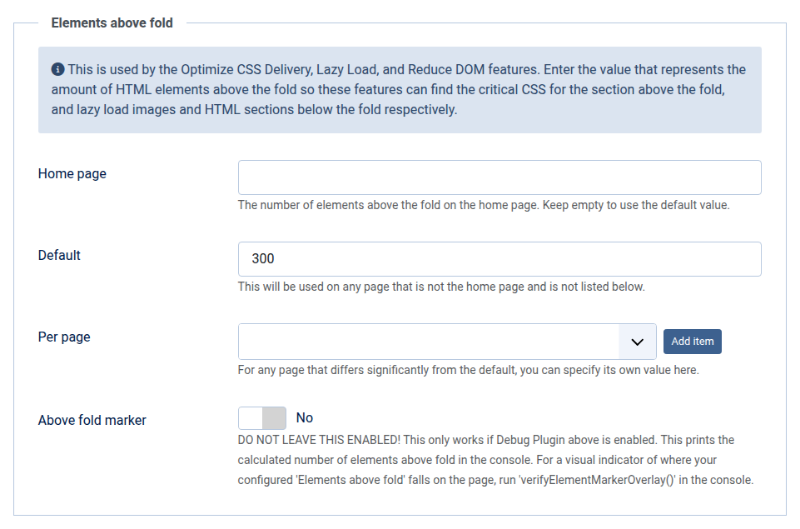
Joomla
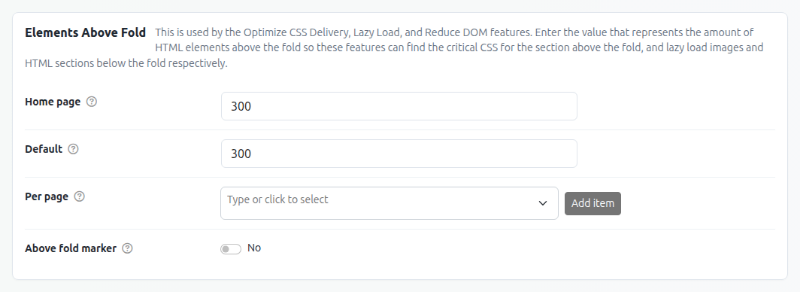
WordPress
Tip
Too high a number is safer than too low. If the fold is set too low, images visible at the top of the page may be lazy loaded and appear late, and the top of the page may briefly appear unstyled once Optimize CSS Delivery is on.
Find the CSS Dynamic Selectors
Some elements appear at the top of the page only after JavaScript has run: a cookie banner, a sticky header, a menu built by a script, a side panel positioned at the top of the screen. JCH Optimize can't see them when it works out the critical CSS, so you give it the CSS selectors that style them.
-
On the settings page, CSS tab, Optimize CSS Delivery section, set Configure helper to Yes and save.
-
Open your home page in a private window, with the console open, and reload. The console prints the selectors it found.
-
Type this in the console and press Enter:
downloadDynamicSelectors()Your browser downloads a small file containing the selectors.
Figure 7.4. The dynamic selectors printed in the console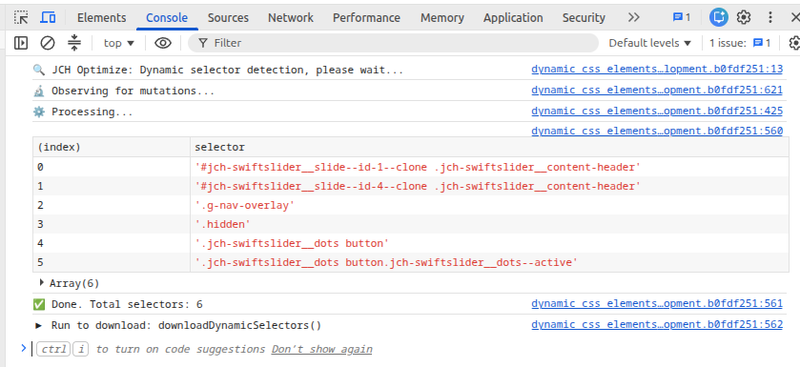
-
Repeat on two or three other typical pages, and at phone size, downloading a file each time.
-
On the dashboard, click in Utility Tasks, choose Import settings, and import each file. The selectors are added to your CSS Dynamic Selectors setting; nothing else changes.
-
Set Configure helper back to No and save.
Warning
Don't leave either helper switched on. They add extra work and console output to every page while Debug Plugin is on.
On This Page