
Save, Restore and Reset Your Settings
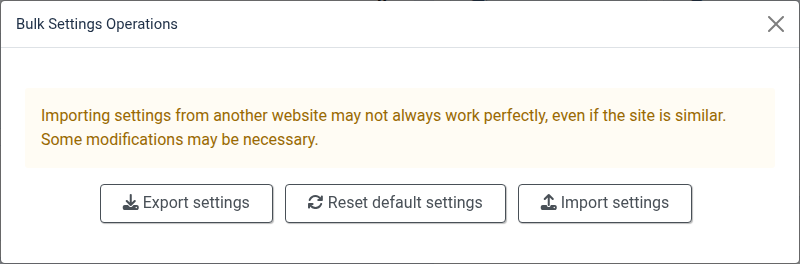
in the dashboard's Utility Tasks opens a window with three options:
-
Downloads all your JCH Optimize settings as a file. Do this before any big change, such as an AI-assisted optimization run, and after you finish optimizing.
Your credentials stay on the site and are not in the file: your Download ID, the Cloudflare API token and the Redis password. When you import a file without them, the site keeps its own.
Pro The settings of the AI-Assisted Optimization window aren't in the file either, and Bulk Settings never changes them: the code that links your site to AI-assisted optimization when it is enrolled, your AI provider and its key, and your PageSpeed Insights key. An import keeps your site's own, even if the file has others, and so does resetting to the default settings.
-
Loads settings from a file. A full export replaces all your current settings. A file made by a configure helper, such as the dynamic selectors file from the section called “Find the CSS Dynamic Selectors”, is added to your current settings instead.
-
Puts every setting back to its default. You are asked to confirm. The settings of the AI-Assisted Optimization window are kept (see Export settings above).
Note
You can import settings exported from another site, for example to copy your configuration to a similar site, but every site is different. Check the result, and expect to adjust some settings, especially exclusions and the elements above the fold.
Your JCH Optimize settings are stored in your site's database, so a full site backup includes them as well.
On This Page